Installation APP
Software Installation
Add pet feeder via QR code mode
1. Search the App Store or scan the QR code below to download and install Pet Zero

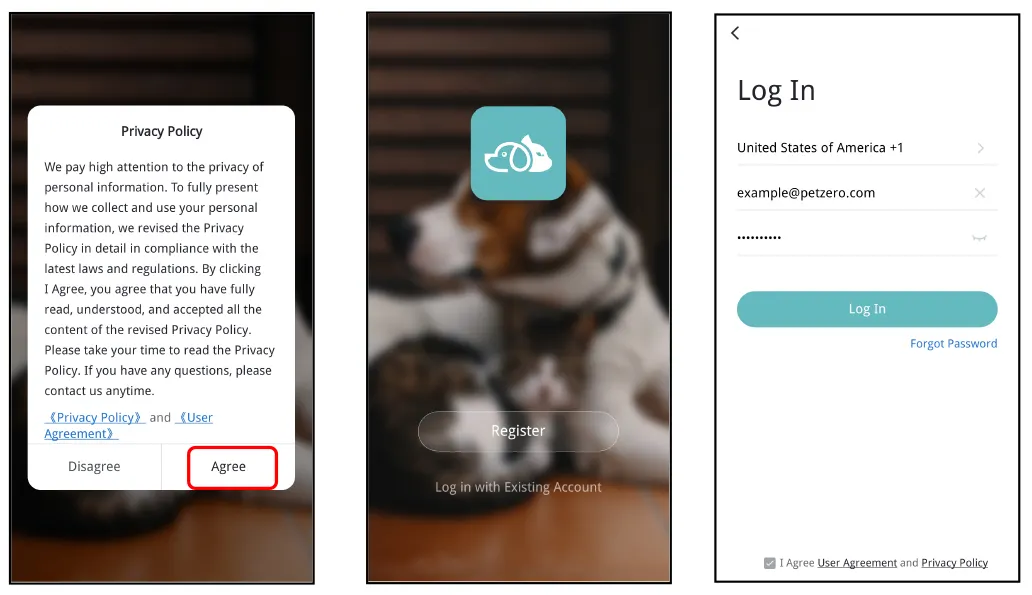
2. Run the App, read and agree to the privacy policy, and register a new account or login to a registered account. When you register or login to the account, please choose the correct country or area.
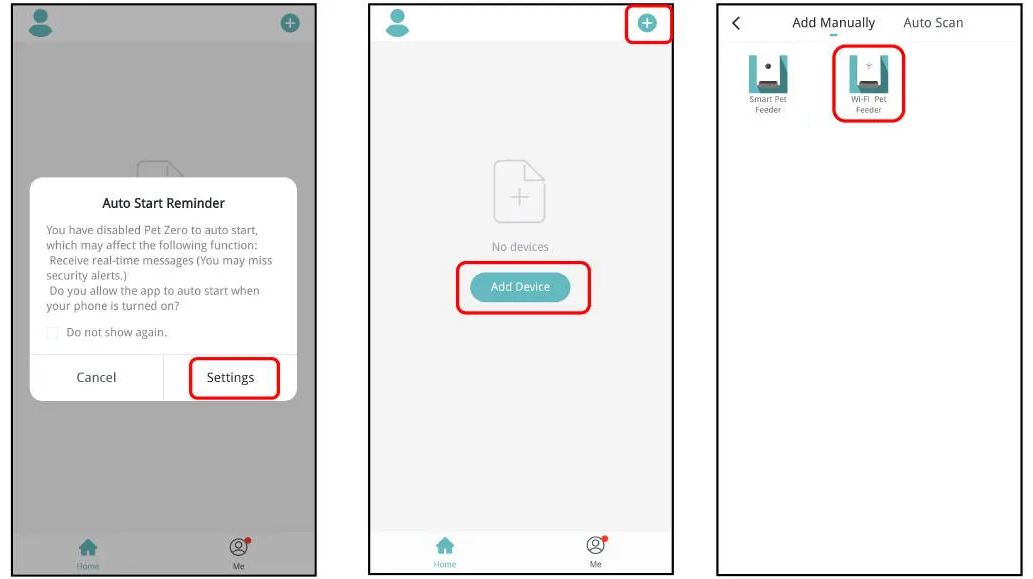
3. When you login, the App will ask you to access certain permissions. These permissions are very important for the App so please allow them. Click Add Device or + to add a new pet feeder. Choose the Add Manually tab and select Smart Pet Feeder.
4. After turning the feeder on, wait for about 1 minute for it to boot up. Then check whether the Wi-Fi indicator is flashing RED 2 times per 5 second. If yes, then click Add Device or + to add a new pet feeder. When the App asks to access certain permissions, please allow them. Then mobile phone will detect the feeder by Bluetooth automatically. Once detected, App will show a message to ask to add the feeder. Click Add.
Wi-Fi Indicator status
- Always on in BLUE: Feeder is booting.
- Flashing in RED: Feeder is waiting for Wi-Fi network configuration; it is in AP mode.
- Always on in RED: Feeder is configured for the Wi-Fi network and trying to connect. If the connection fails, it will always be red.
- Flashing in GREEN: Feeder is trying to connect to Wi-Fi network.
- Always on in GREEN: Feeder is connected to the Wi-Fi network. It can be turned off in the settings.
Notice: When the feeder is only powered by batteries, the power indicator and Wi-Fi indicator will turn off.
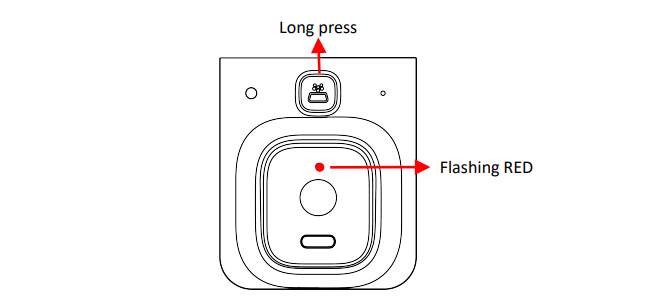
5. The name of your Wi-Fi network will then appear in the textbox
automatically. Next, please enter the corresponding Wi-Fi password
and click Next. Both 2.4GHz and 5GHz Wi-Fi networks are supported.
Important Notice:
a. When entering the password, be aware that it is case sensitive.
b. Please choose a Wi-Fi network with WPA, WPA2 or WPA3
encryption instead of WEP encryption.
c. The feeder support IEEE802.11 b/g/n 2.4Ghz Wi-Fi network and
IEEE 802.11 a/n 5Ghz Wi-Fi network. Any newer WLAN standard
such as IEEE802.11 ac/ax are not supported.
d. Make sure that MAC address filtering and wireless device isolation is
turned off on the wireless router.
e. The feeder may not support the Wi-Fi signal of the wireless repeater.
If the connection fails, try connecting to the wireless router directly.
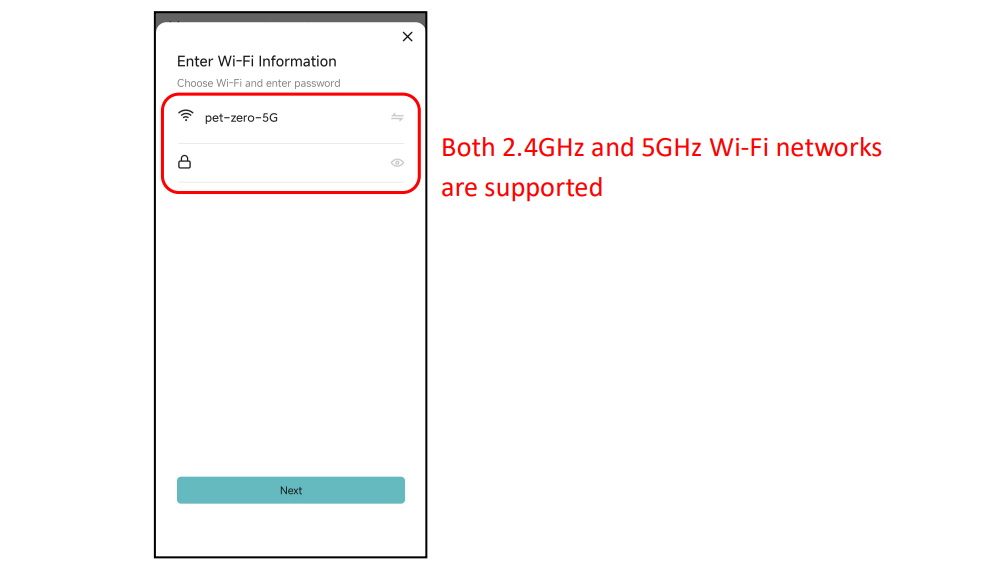
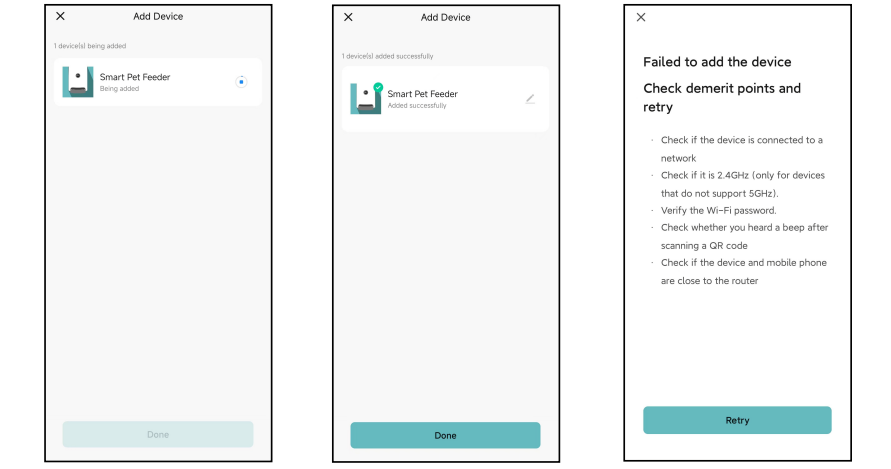
6. The feeder will then try to connect to the Wi-Fi network. When connected, click Done to complete the adding process.
If the feeder fails to connect, please check the important notice above.
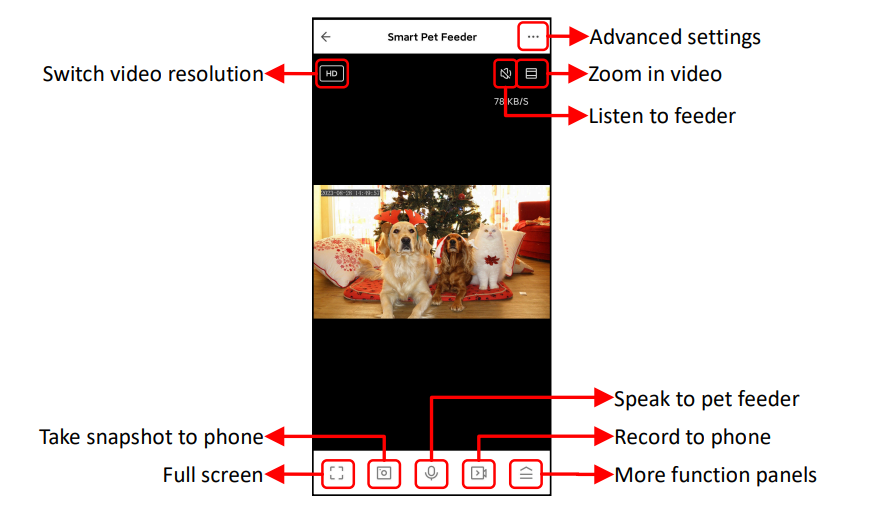
7. Then the App will be then directed to the video interface for the pet feeder.
Notice: To enable certain functions, the App needs to obtain corresponding permissions on the phone. Please allow them when prompted